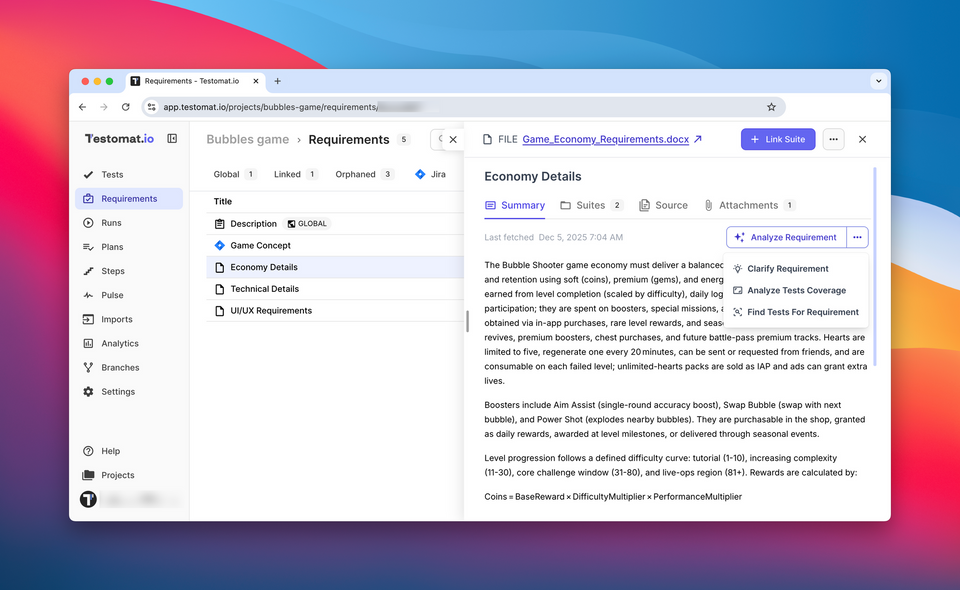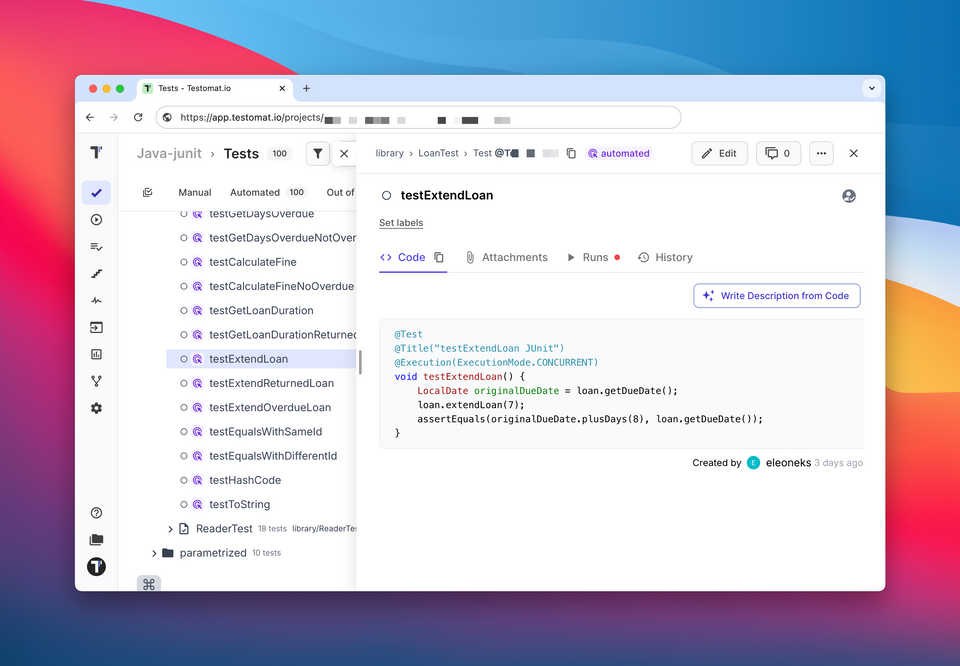
Redesigned New Plan Screen with Combined Test Selection
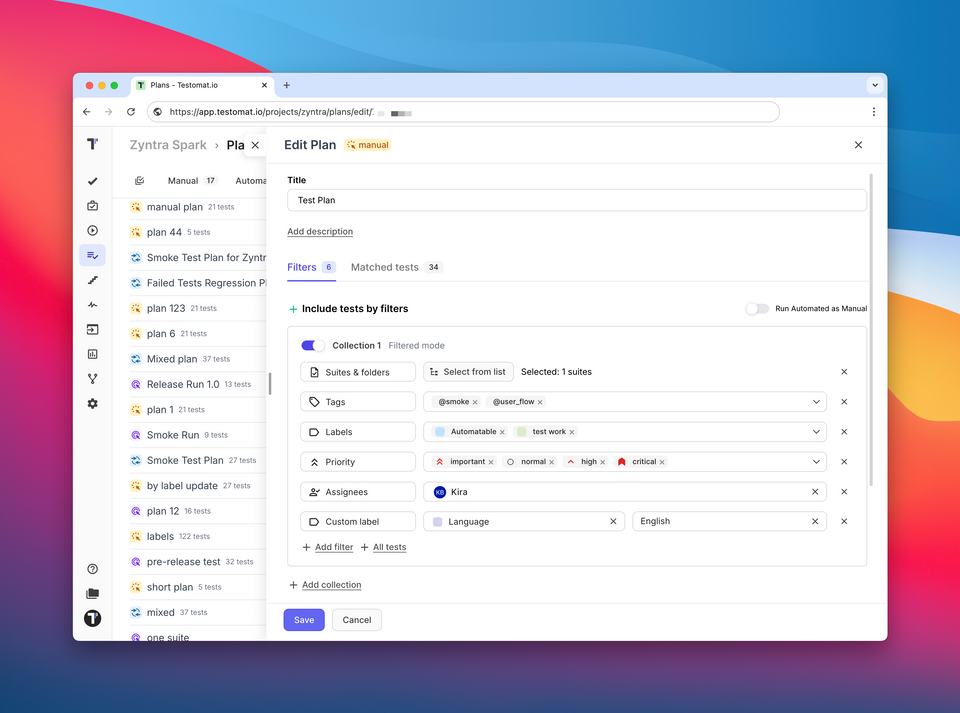
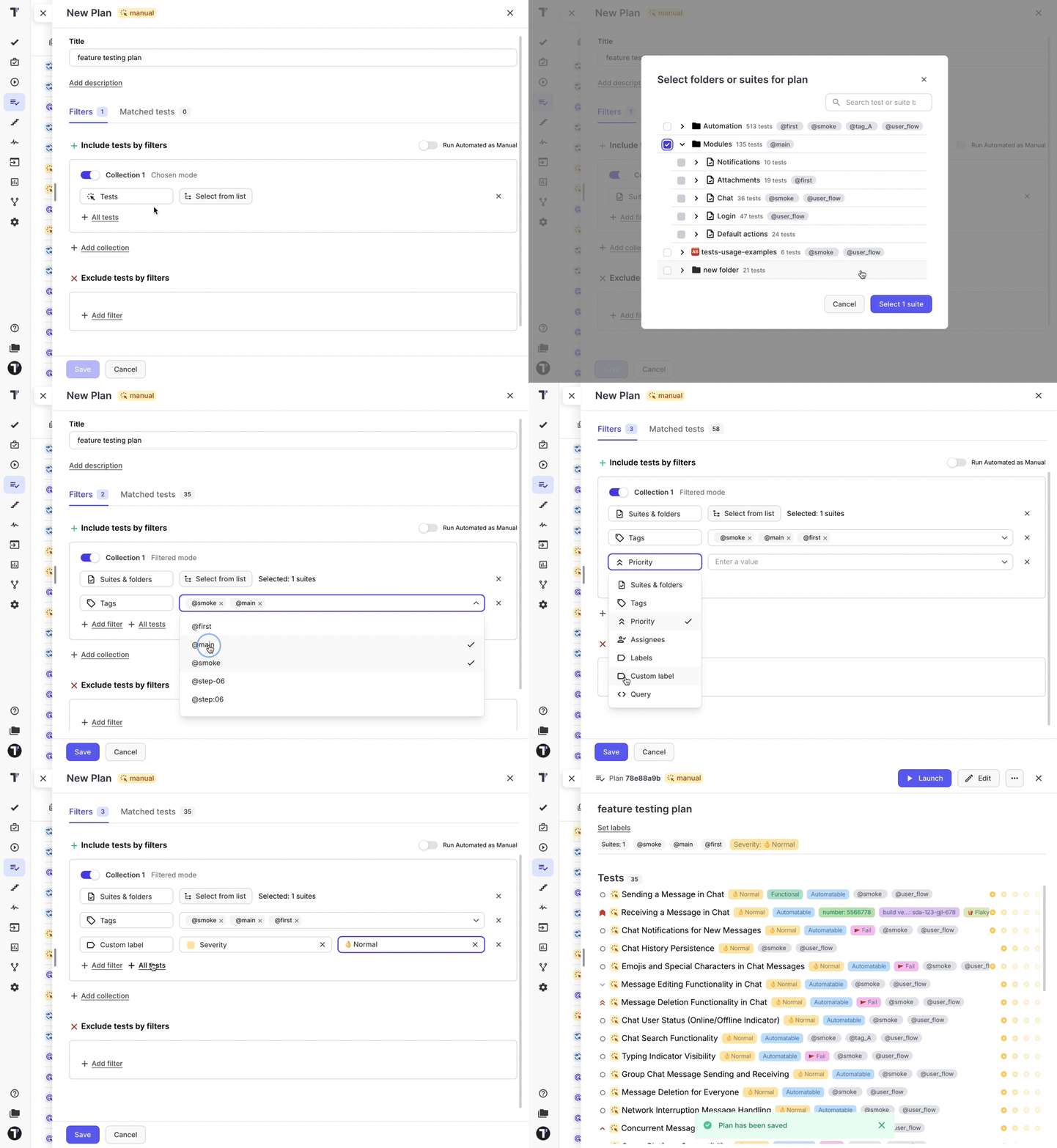
We redesigned the New Plan screen to improve the usability and flexibility of Test Plan creation. Users can now combine filtering and manual selection of test cases and test suites within a single workflow.
This allows adding tests from different sources using multiple criteria. For example, you can include high-priority tests from one suite and labeled tests from another suite in the same plan. Multiple queries (test collections) can be combined into a single Test Plan.
The updated flow makes Test Plan creation more flexible and precise, reduces the need for separate plans or manual adjustments, and helps teams assemble test coverage that better matches real test execution and release needs.
Shared Tests Across Projects
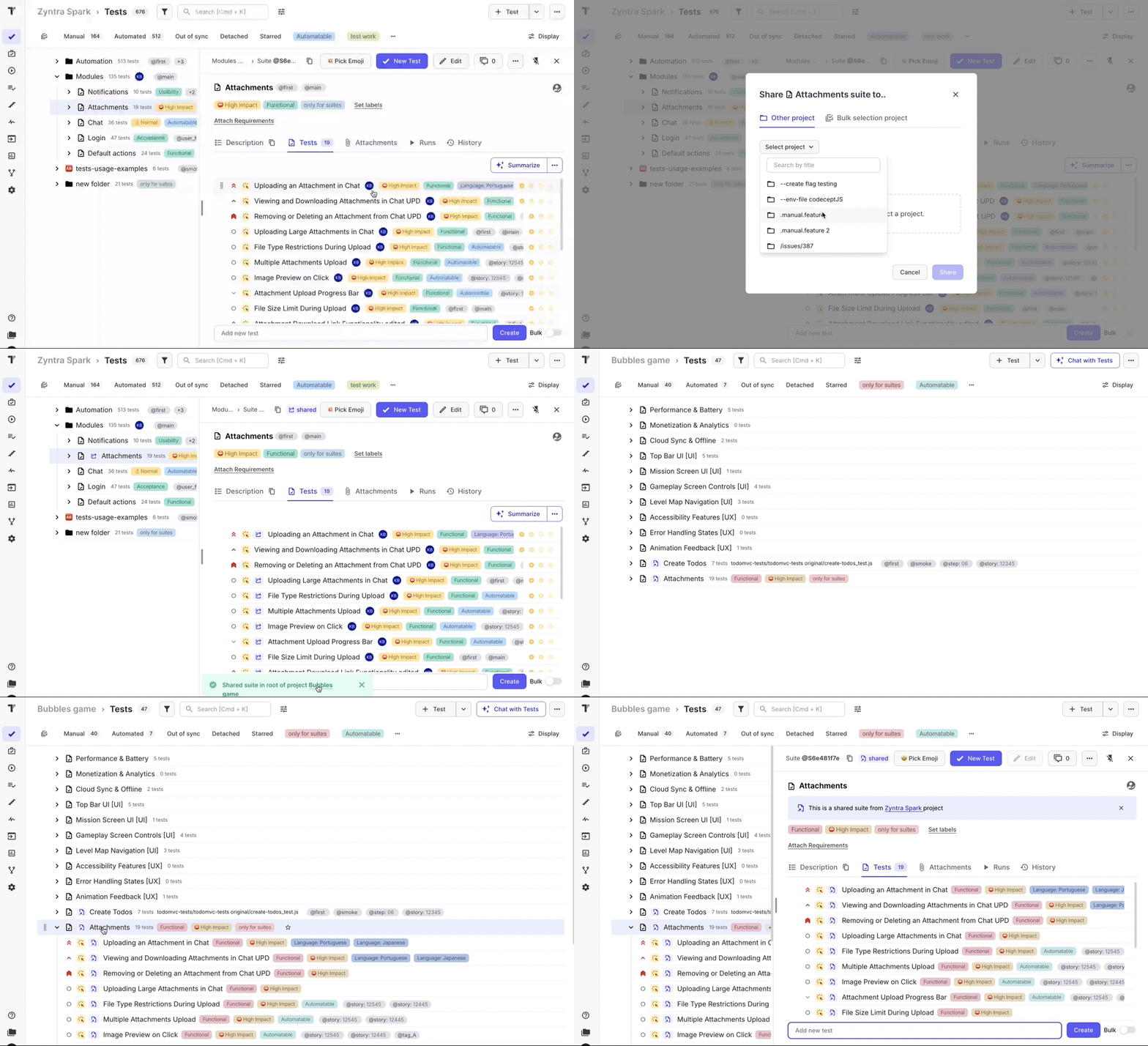
We introduced shared tests, allowing test folders and test suites from a source project to be shared with one or multiple projects. This makes it possible to reuse common test structures and scenarios across teams and products without duplicating data.
Shared suites remain synchronized with the source project. Any updates to the original test folders, suites, or test cases are automatically propagated to all connected projects, ensuring consistency of shared test coverage.
At the same time, test cases in target projects can be adjusted independently. Changes made to test cases in a consuming project do not affect the source project or other projects using the same shared suites.
Benefits
- Reuse test folders and suites across one or multiple projects
- Keep shared test structures and content synchronized automatically
- Reduce test duplication and maintenance effort
- Allow project-specific customization without impacting the source project
Updated New Run UI with Launch Type Tabs
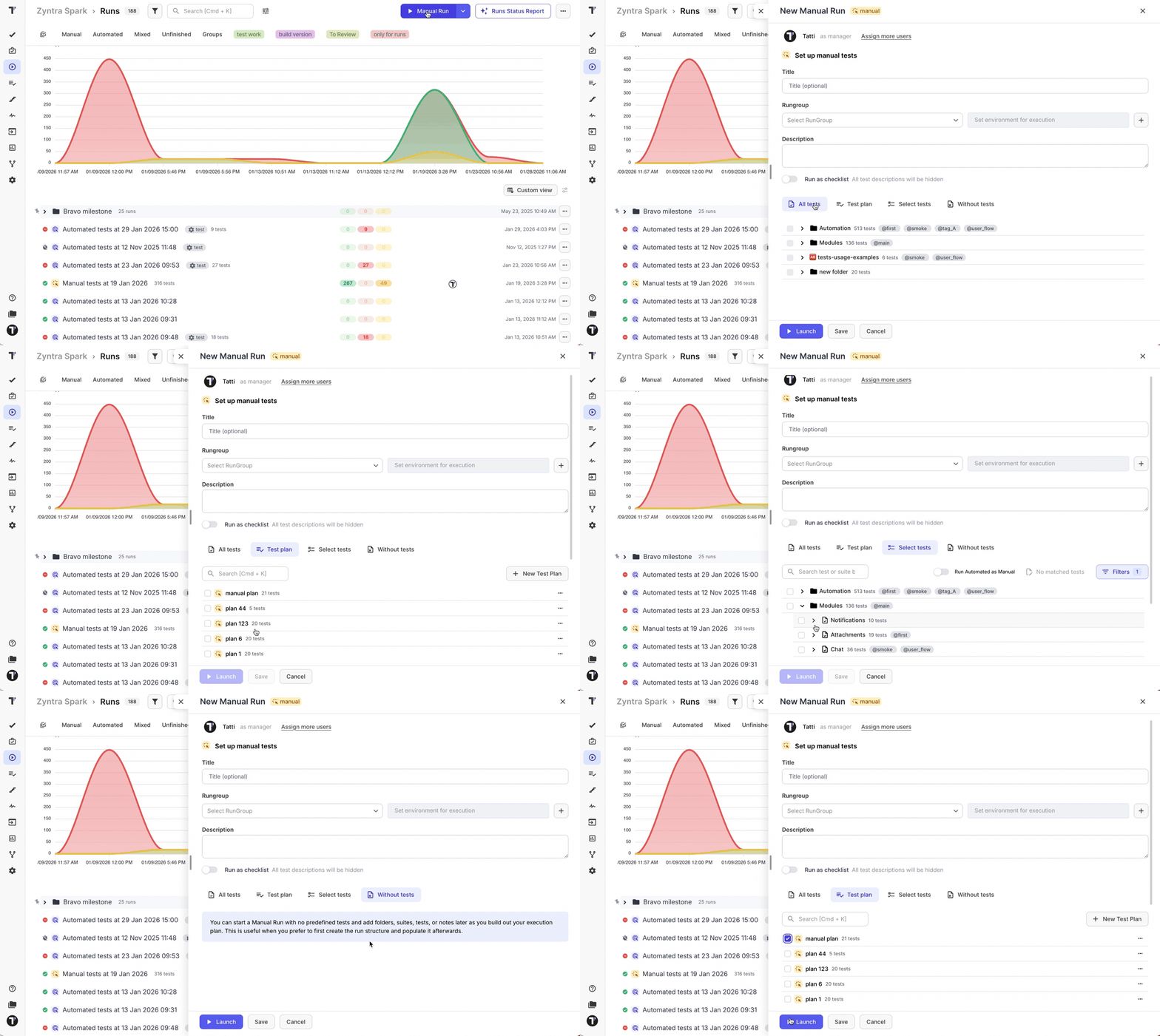
We updated the New Run screen and introduced tabs for different test launch types. This allows users to switch between run modes and focus only on the options relevant to the selected launch type.
By separating run configurations into dedicated tabs, the New Run flow becomes clearer and less cluttered, making it easier to set up the required type of test execution without distraction.
Passing Suite IDs to CI from New Run View
We added the ability to select and pass suite IDs to CI when creating a new run. This is available in the New Run view as a multi-select input, allowing you to define which test suites should be executed as part of a mixed run.
The multi-select is implemented as a dropdown, where you can choose the required suites by their IDs. The selected suite IDs are then passed to your CI system.
To use this feature, you need to adjust your CI workflow by adding grep by suites and update your Testomat CI configuration to accept and process the passed suite IDs. See example here.
Improved Test Result View UI
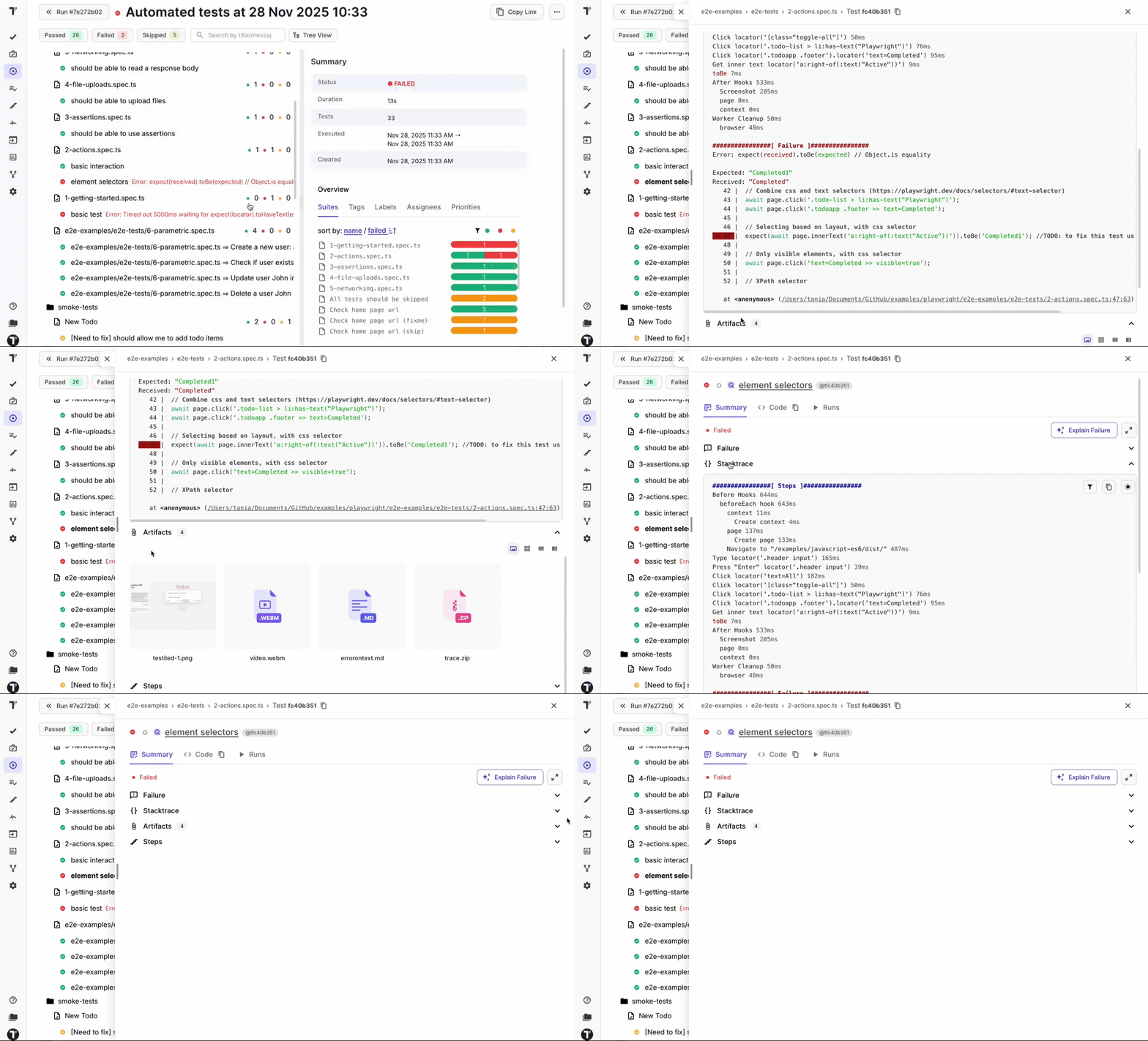
We improved the user interface of the individual test result view, focusing on layout, readability, and navigation.
The updated design makes test results easier to view and understand, while UI optimizations improve rendering performance. Navigation within test results is now clearer, helping users review large or complex test outputs more efficiently.
The improved layout and visual structure make individual test results easier to read and navigate, while UI optimizations ensure faster rendering and a smoother test review experience, especially for detailed or large test outputs.
Expanded Copying for Tests and Suites
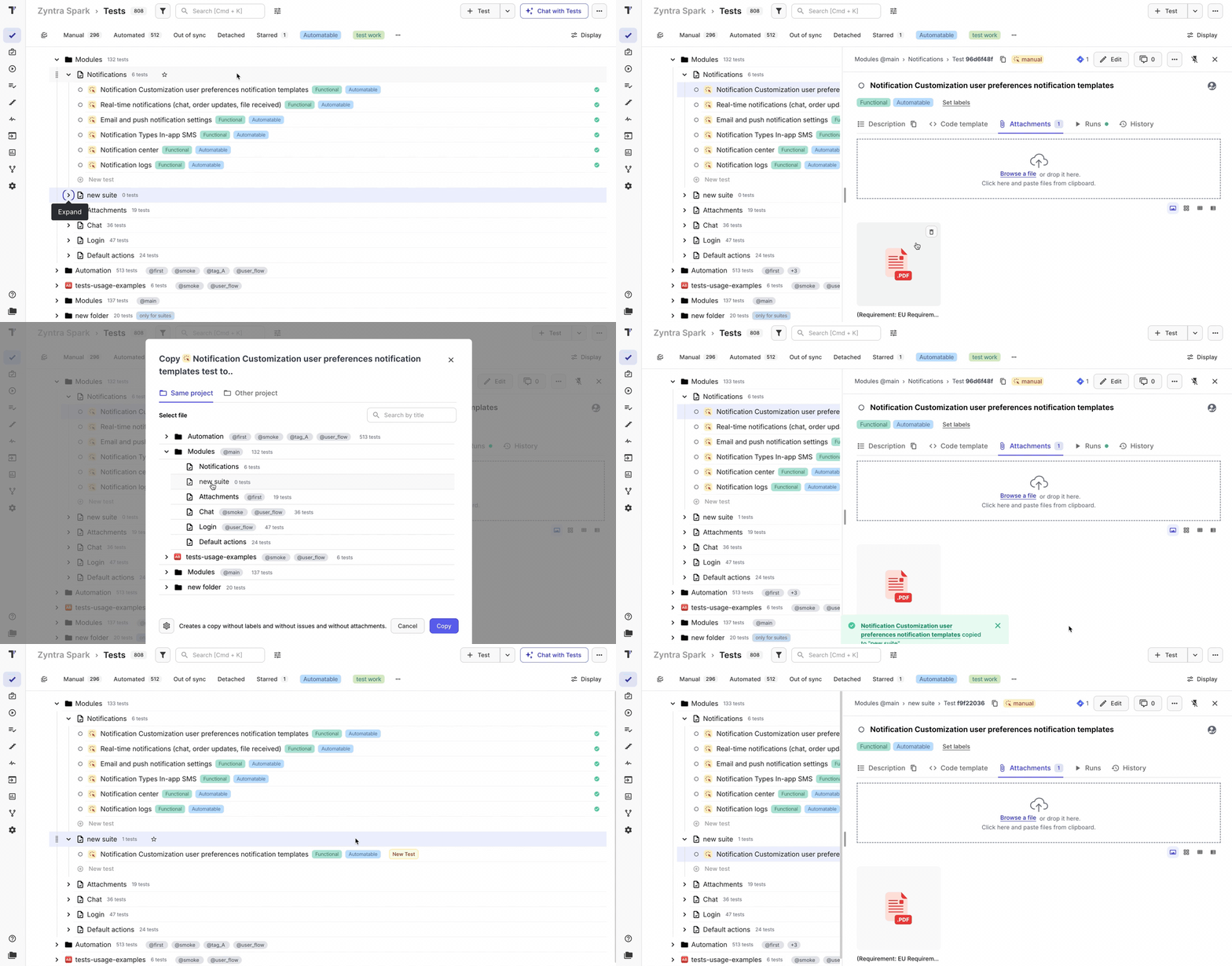
We expanded the copying capabilities for tests and test suites. In addition to the test description, you can now copy labels, linked issues (including Jira), and test attachments.
The copy flow has been enhanced to make these options explicit and configurable in the UI. When initiating a copy action, the system now clearly shows which test metadata will be included, allowing users to review and confirm the scope of the copy before proceeding.
Updated UI flow
-
Open a test or test suite
-
Select the Copy action from the available options
-
In the copy dialog, review the included data:
- labels
- linked issues (including Jira issues)
- attachments
-
Confirm the copy action to create a new test or suite with the selected metadata preserved
The detailed copy flow ensures tests and suites are duplicated with full context, reducing manual follow-up work and preventing data loss. This helps teams reuse tests faster while keeping labels, issue links, and attachments consistent across copied items.
Pin Mode and Display Settings for Tests Page
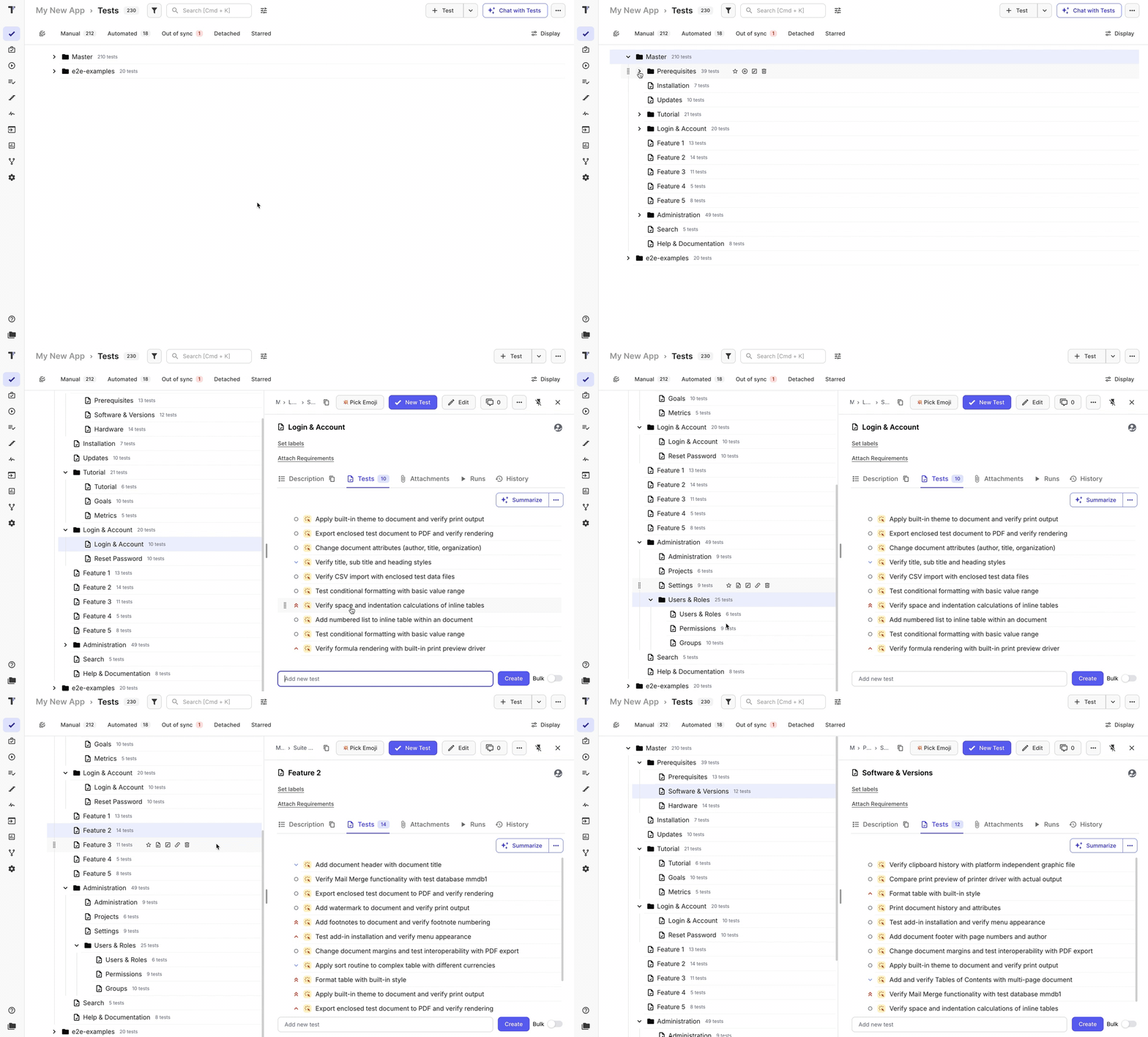
We introduced Pin mode for the tests and suites view, allowing users to keep a fixed side panel when viewing a test or suite. This layout is similar to other test management systems and helps make Testomat adoption easier.
To support this, we added Display settings on the Tests page, where you can control how the test structure and side view are displayed.
Display settings options
- Hide tests in tree — shows only folders and suites in the main tree, helping keep the project structure clean and easier to navigate
- Pin sidebar — keeps the suite or test view fixed in a side panel while browsing the test tree
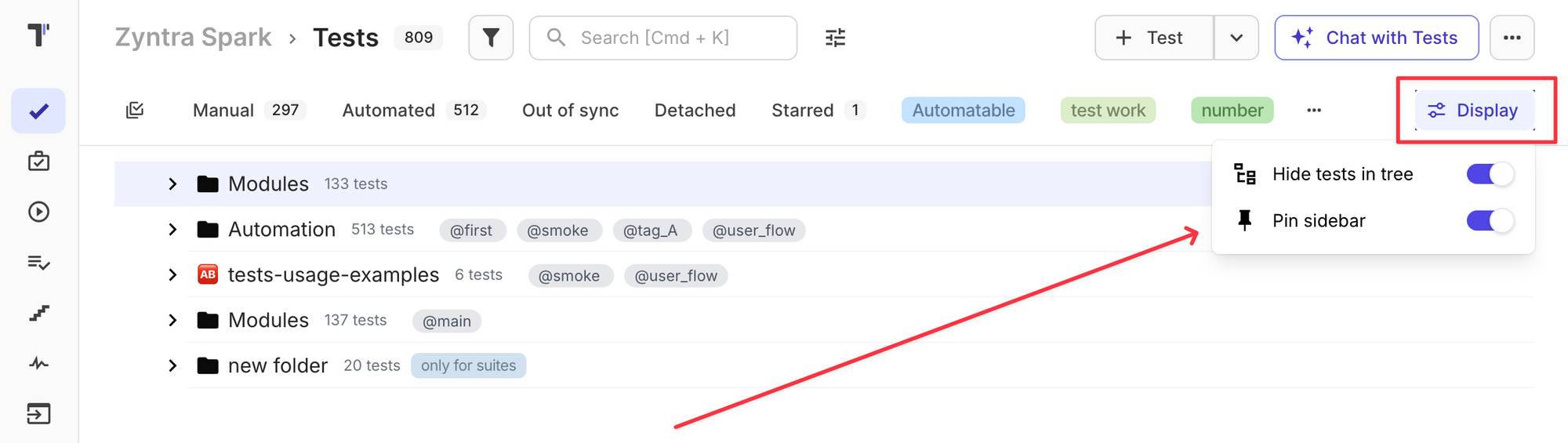
The new Pin mode and display options provide a more familiar and flexible layout, improve navigation in large test structures, and make it easier to review and manage tests without losing context.
Optimized Test Result Processing
We optimized the reporting and processing of test results submitted via XML. Results are now delivered to Testomat faster, especially for large test runs.
This improvement resolves an issue where some test results could be missing in runs with thousands of tests and eliminates delays when updating tests and execution results.
Benefits
- Faster availability of test results in large-scale test runs
- More reliable and complete run data
- Reduced delays when updating tests and execution statuses
🛠️ Fixes and Improvements
- Fixed launching multi-environmets runs https://github.com/testomatio/app/issues/1445
- Fixed multiple runs creation when using TESTOMATIO_SHARED_RUN_TIMEOUT https://github.com/testomatio/app/issues/1410
- Improved traces processing BDD projects https://github.com/testomatio/app/issues/1370
- Improved editing plan for ongoing run so excluded tests are removed https://github.com/testomatio/app/issues/1330
- Improved processing tags for automated tests https://github.com/testomatio/app/issues/1236
- Removed showing failures 0 in Slack notification https://github.com/testomatio/app/issues/900
- Improved importing suites inside another suite for JS frameworks and markdown https://github.com/testomatio/check-tests/issues/198, https://github.com/testomatio/app/issues/1408
- Fixed export to markdown for cyrylic https://github.com/testomatio/app/issues/1489